
What is E-Sign integration?
E-Sign integration is an online electronic signature service that can facilitate a candidate/vendor/client to digitally sign a document.
How to setup E-Sign in Vultus?
To setup E-sign in Vultus:
- Go to Validation Message from the Settings menu
- Search for the ESignGenie Validation message

- Click on edit icon
- Change the Config value to Y in the Config Setting slider
- Click on the Save button
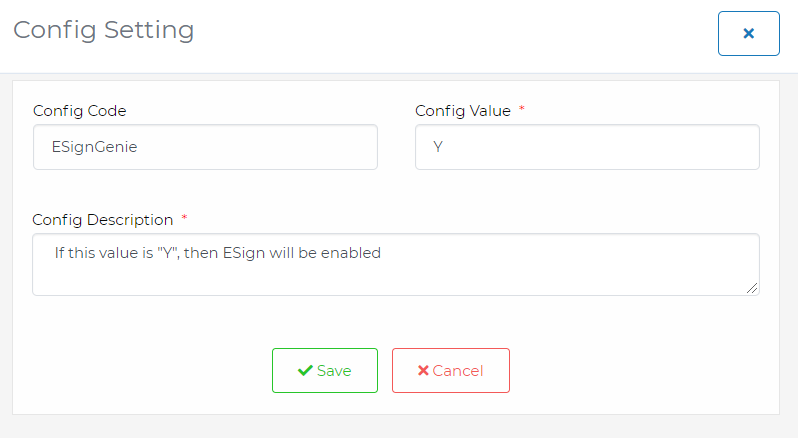
- Go to Integrations section now.
- Click on Add New Key under Esign Genie.

- Enter the Client Id & Client Secret
- Click on save
- Click on Import Templates From Esign to import the templates into Vultus
Where can you find your Client Id & Client Secret key?
- Log in to your E-sign account
- Click on Settings
- Click on API from menu
- Copy the client Id and client key and paste into Vultus
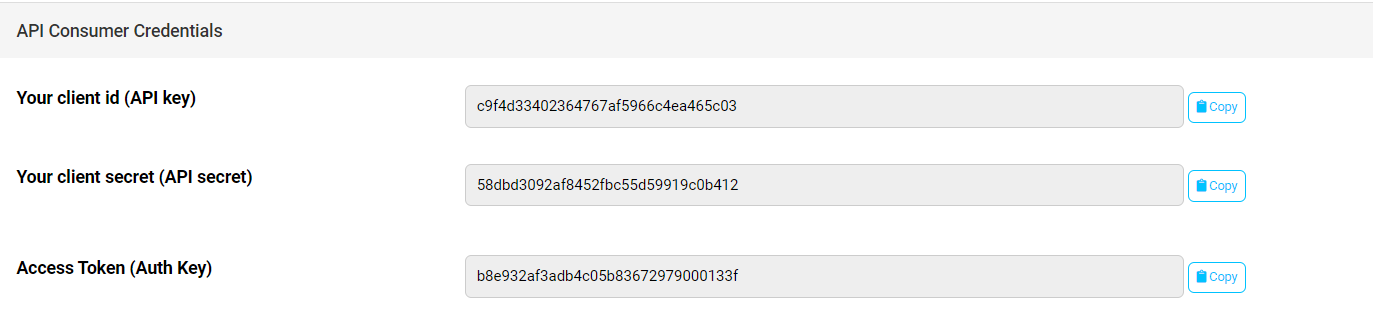
What are the changes that need to be made in your E-sign account?
- Log in to your E-sign account
- Click on Settings
- Click on API from menu
- Enter Your Website/Application Name as Vultus Recruit
- Paste this URL: https://recruit.vultus.com//Default.aspx?/tg=Dashboard in the Your Website/Application URL dialog box.
- Paste this URL: https://recruit.vultus.com//EsignHandler.ashx in the Webhook URL dialog box.
- Click on Submit.
How to send the documents to E-sign for Electronic Signature from Vultus?
- Go for the candidates module from left menu in Vultus
- Select a candidate and click on Send to Esign from Actions dropdown
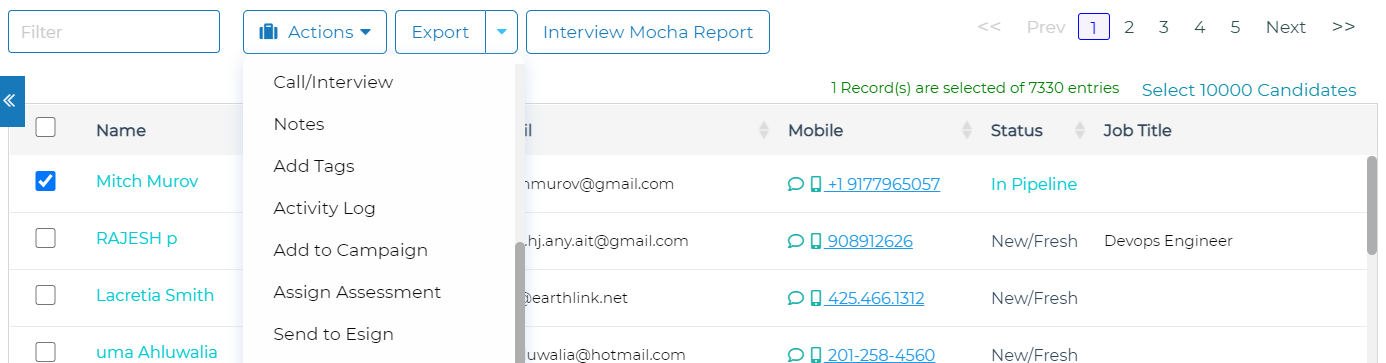
- Select a file for E-signature either from uploaded files or use an E-sign Template
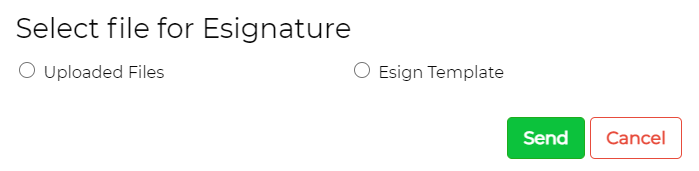
- Select signature fields in the E-sign window or you can add any fields from the E-sign window.
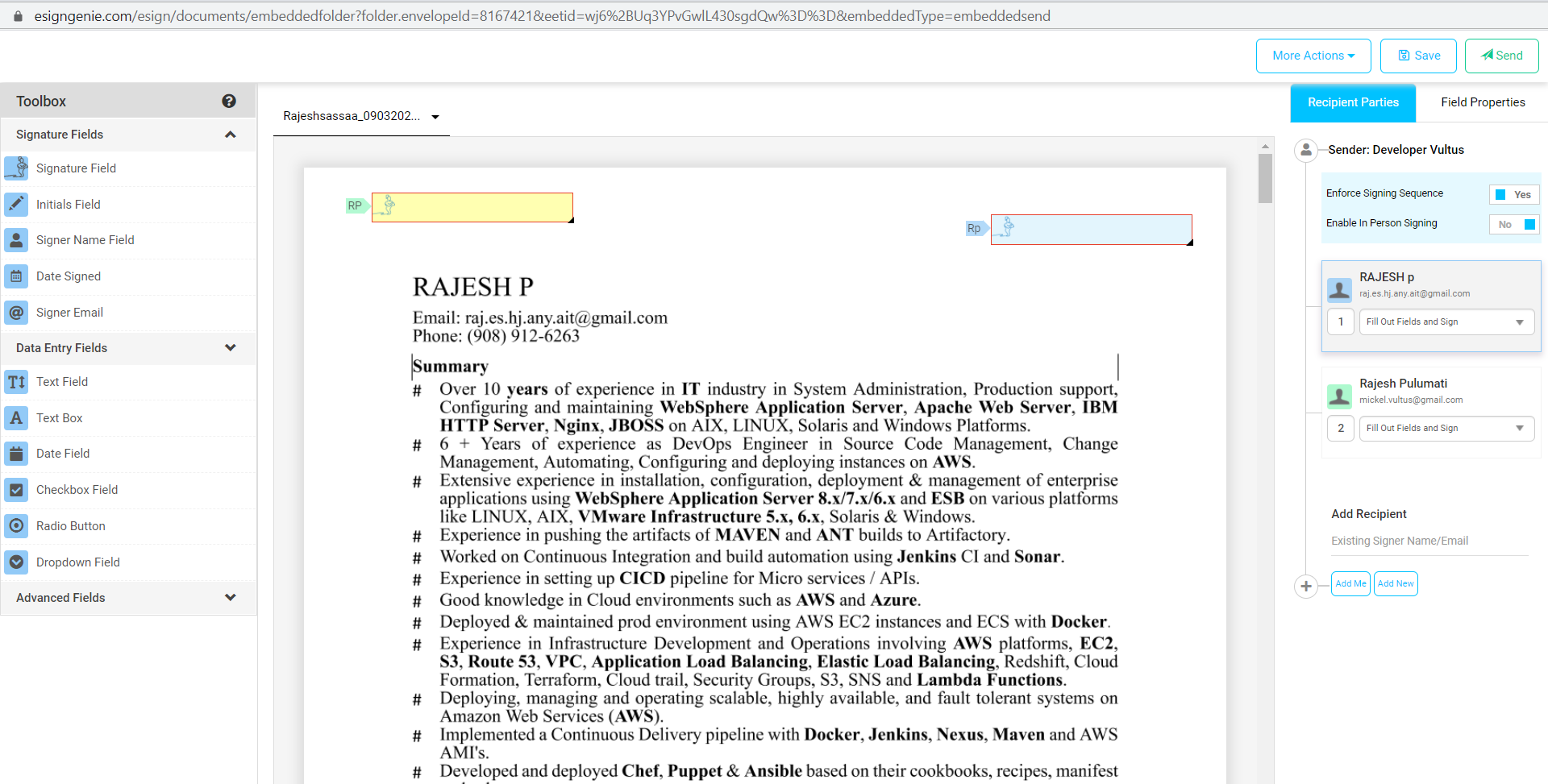
- Click on Send.
- Again Click on Send to send invitation email to all the parties from E-sign
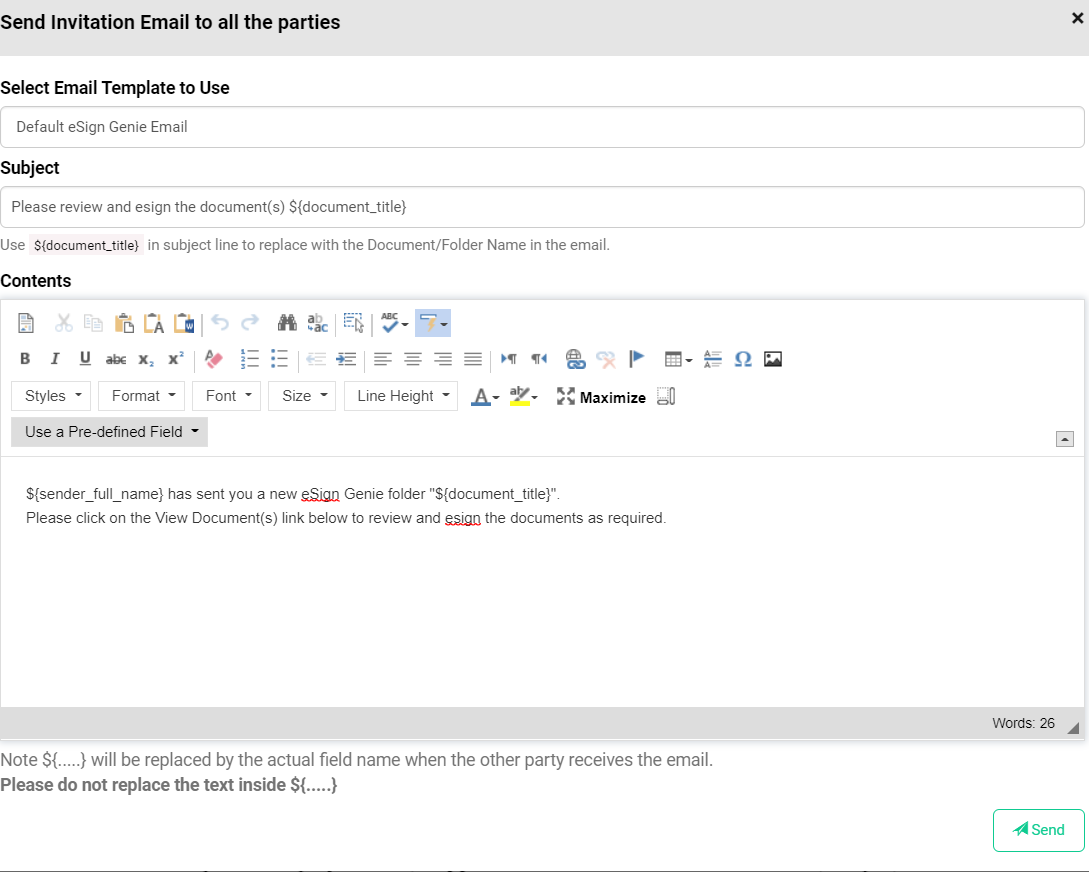
- Wait for the confirmation message from Esign

- Now Click on View Document(s) from the Esign parties mail
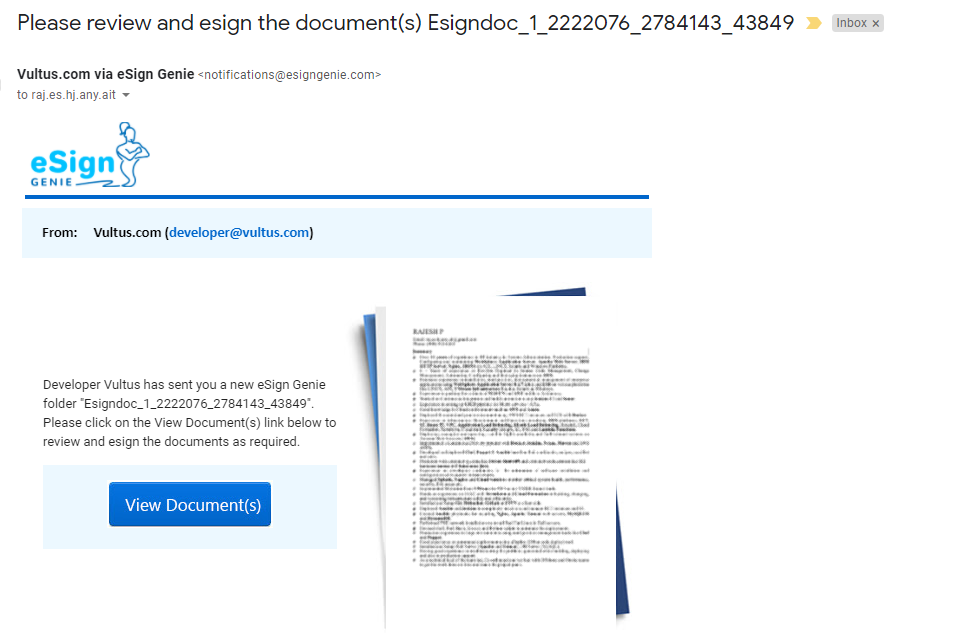
- Click on Sign text box in the document
- Now parties will sign the document
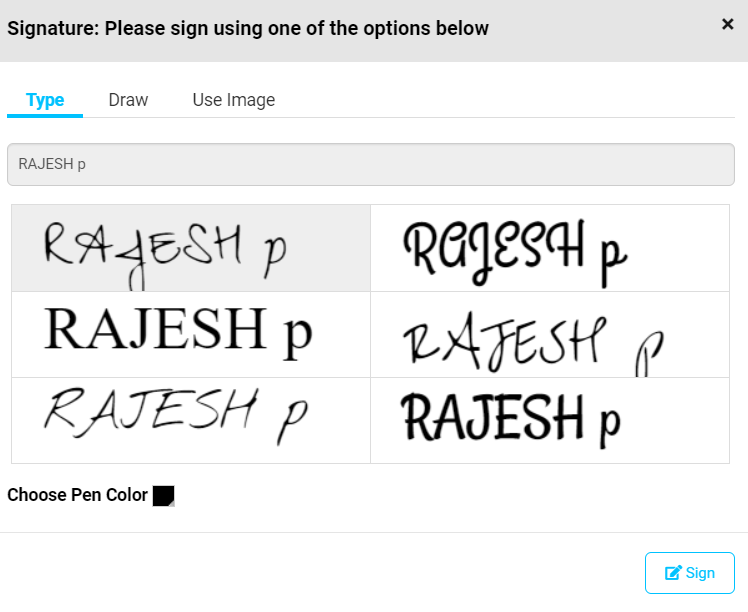
- Once all the parties sign is completed, the file will be executed successfully from E-sign.
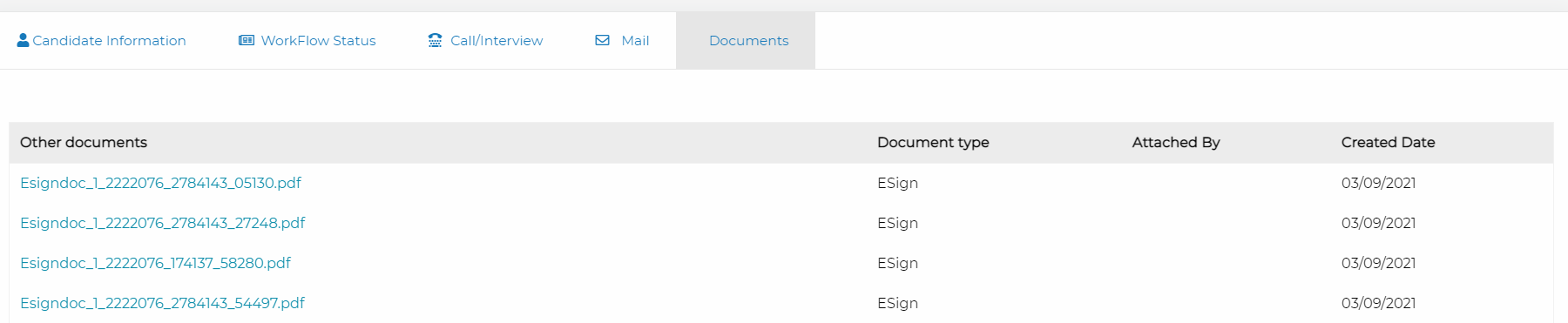
- Now click on documents tab from candidate edit to view the signed Documents under E-Sign document type.
Reach out to the Vultus support team for any queries.