How to add Gmail & Office 365 Plugin Extension?
To add Gmail & office 365 plugin extension:
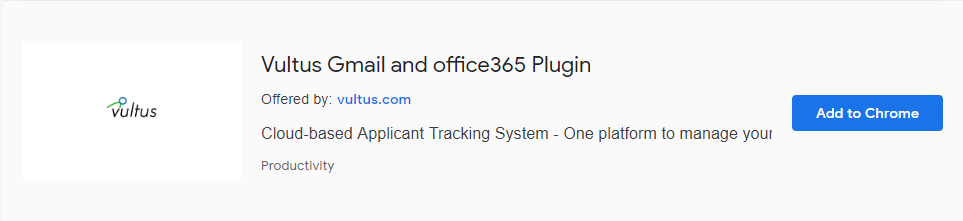
- Go to the Web store in Chrome Apps.
- Search with the Vultus and Click on Add Extension for the Vultus Gmail & Office 365 plugin.
- Click on Vultus logo extension in the browser and enter Vultus login credentials.
- Click on Login.
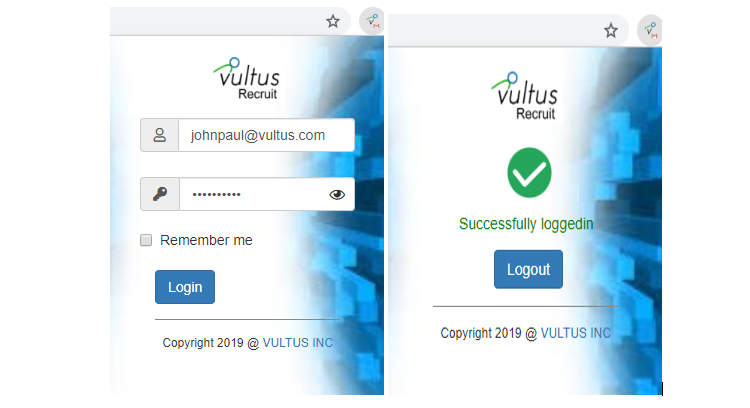
- After successfully logged in, go to the Gmail mails or outlook mails in office 365.
Gmail
Office 365
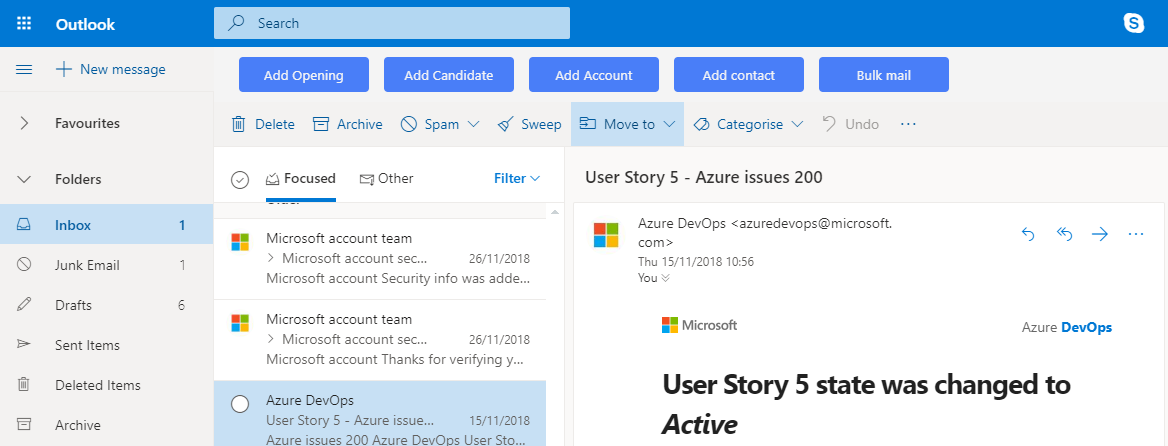
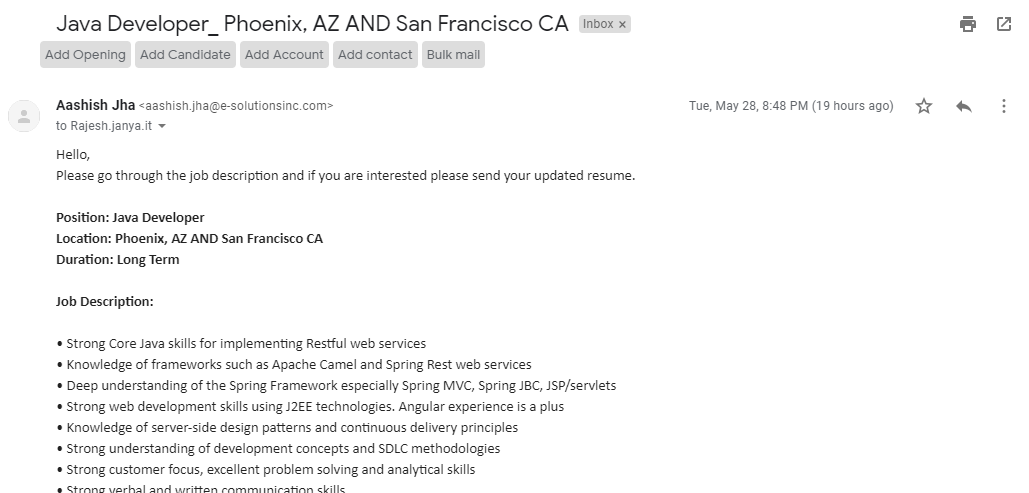
Add Opening:
- Click on Add Opening in Gmail/Office 365.
- Select the Account Name and enter all the fields.
- Click on Save.
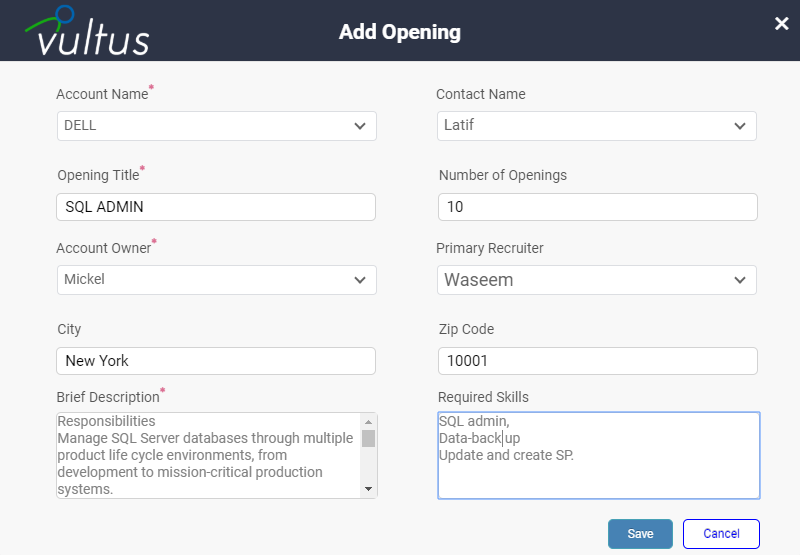
Add Candidate:
To add candidate we have two options
- Sender as Candidate
- Send by Parsing
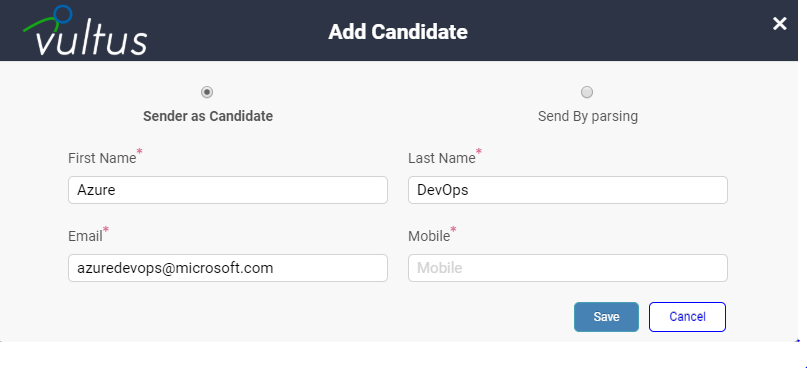
Sender as Candidate:
- Click on Add candidate in Gmail/Office 365.
- Select the option Sender as Candidate.
- Enter all the fields and click on save.
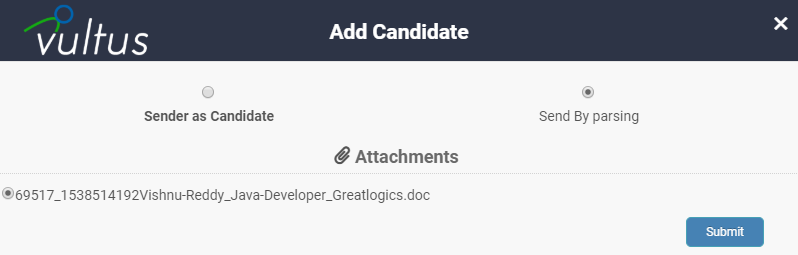
Send by parsing:
- Click on Add candidate in Gmail/Office 365.
- Select the option send by Parsing, if the attachment contains in the mail.
- Click on submit.
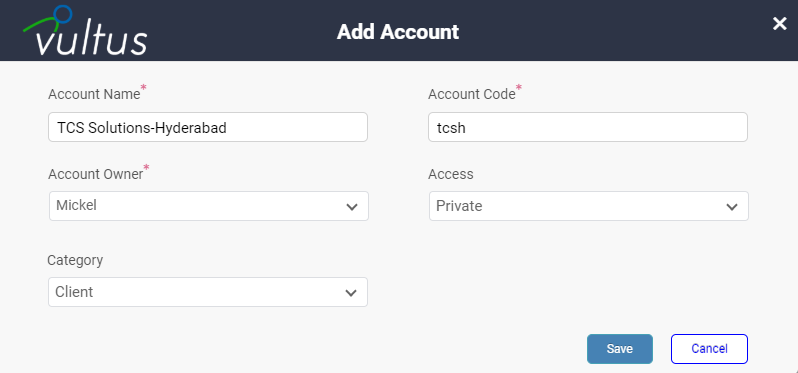
Add Account:
- Click on Add Account in Gmail/Office 365.
- Enter the Account Name and Account code.
- Select all other details if required and Click on Save.
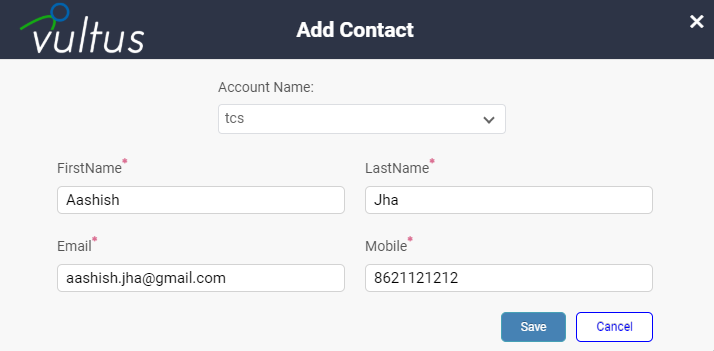
Add Contact:
- Click on Add Contact in Gmail/Office 365.
- Select the Account Name.
- Enter all other details if required and Click on Save.
Bulk mail:
- Click on Bulk mail in Gmail/Office 365.
- Select the single or multiple contact group(s) to which you want to send a mail.
- Enter the mail content and click on send.